Give every train its own character.
Enjoy a careful shunt, an unhurried goods working or a passenger departure. Saved driving and brake profiles help you choose a feel that suits the train.
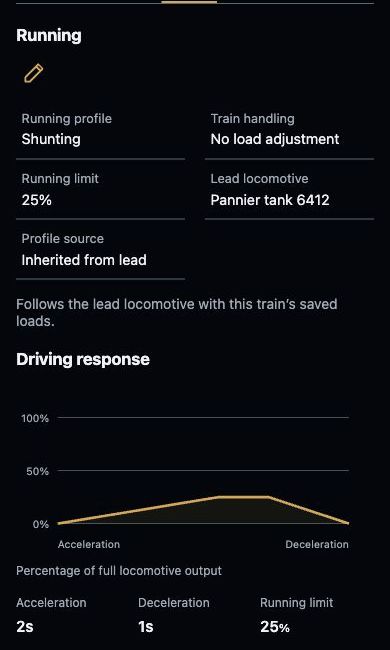
The saved running profile, speed limit and response curve stay with the train.
Step 1
Start with a feel you recognise.
Choose Shunting, Freight, Stopping passenger or Express passenger. Each gives you a useful starting point without asking you to set every detail.
Direct response is available too. A saved train can follow its lead locomotive’s profile when that is the choice you prefer.
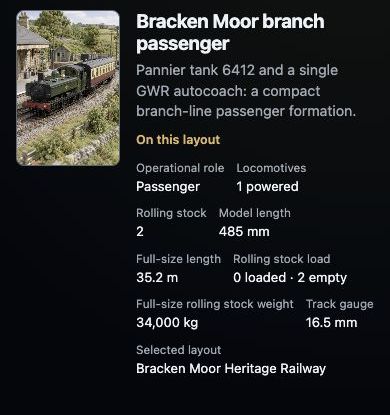
A named train keeps its vehicles and layout details together.
Step 2
See what your choices mean.
The driving-response curve brings the running limit, acceleration and deceleration together. Use it to understand the settings before you save them.
Choose Custom when you want to set your own maximum and response times. Your choices stay in the editor until you save.
The saved running profile, speed limit and response curve stay with the train.
Step 3
Make slowing down part of the enjoyment.
Choose a Gentle, Balanced or Firm brake profile, or set a Custom timing. Off is available when you prefer to drive without that brake control.
A brake profile gives the held Brake control its response. Keep it with the locomotive or train so it is there when you return.
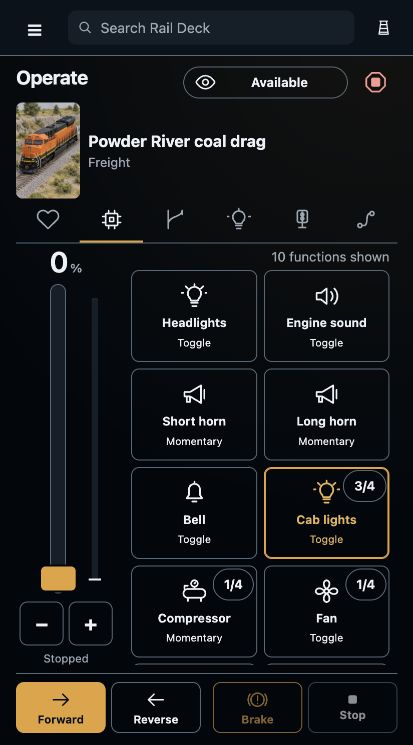
The train’s functions, direction, brake and throttle stay together on your phone.
Step 4
Keep the character with the train.
Save the settings you like, then come back to them another day. Different saved trains can have different driving choices without rebuilding their formations.
Open the controls when you are ready, or return to the settings whenever you fancy a change.
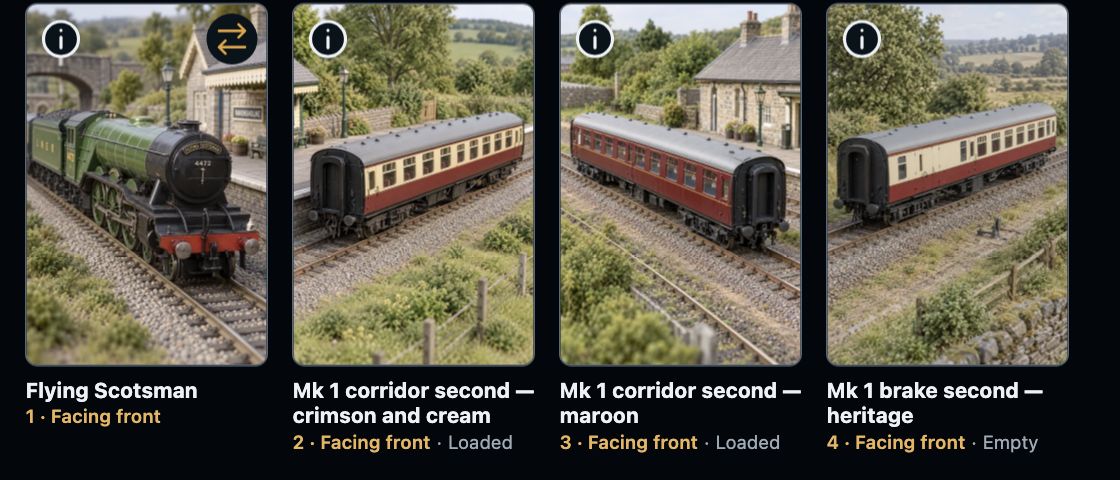
See the vehicles in order, with their facing and load choices beside them.