How Rail Deck works
Start with a train you want to run. Rail Deck keeps its controls together on your phone, tablet or computer. Here’s how to connect your equipment, get set up and add more as you go.
What you’ll need
You can start small. Here are the four parts of the planned setup, from the controls in your hand to the train on your layout.
Your screen
Use Rail Deck on a phone, tablet or computer. Choose a train and keep its controls together.
A Rail Deck bridge
The bridge links Rail Deck to a supported command station beside your railway.
A command station
The railway controller that sends commands to your locomotives and accessories.
Your train
One layout and one locomotive are enough to begin. Add points, signals and other trains when you’re ready.
You don’t need to set up every feature for your first train. Coaches, wagons, routes and advanced settings can wait until you want them.
Physical Rail Deck bridge support isn’t available yet. DCC-EX is the first planned command-station integration. Check the equipment list before buying anything for this setup.
Set up your railway in four steps
Create a layout
Give your railway a name in Rail Deck. Keep it for yourself, or invite the people who will operate it with you.
Connect supported equipment
Add a Rail Deck bridge to your layout and connect it to a supported command station. Check compatibility before choosing the equipment.
Build your first train
Add a locomotive and any coaches or wagons you want to run with it. Arrange the vehicles and save the train with a name you recognise.
Open the train’s controls
Choose your train and open its controls. The throttle, direction, brakes and locomotive functions are together, ready when you need them.
Set up your trains and controls
Build trains
Pick vehicles from your collection and put them in running order. Turn a vehicle to face the other way, add or remove coaches and wagons, then save your train. Reopen that named train whenever you’re ready for another run.
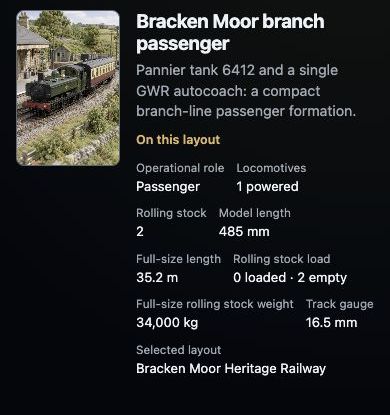
A named train keeps its vehicles and layout details together.
Driving feel
Choose saved driving and brake profiles to suit your train. Keep those choices with it, so a shunting locomotive and a long freight can respond differently. Come back to the settings whenever you fancy a change.
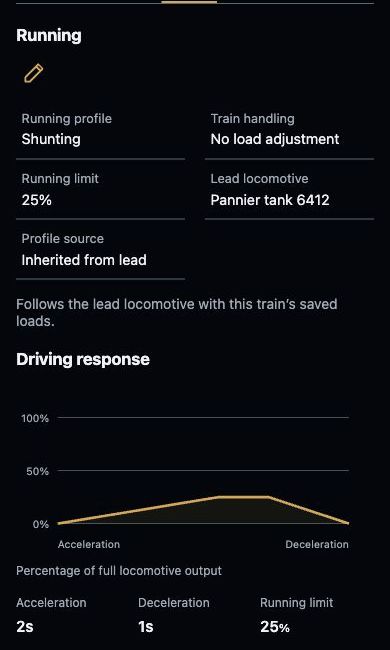
The saved running profile, speed limit and response curve stay with the train.
Routes and accessories
Add your points and signals, then link accessories that work together. Save the steps for a regular route under a name you recognise. Open it beside your train controls and follow its progress to see what’s finished and what needs your attention.
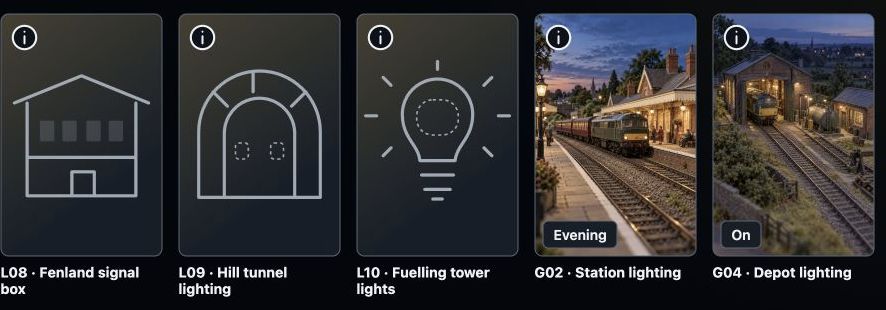
Recognisable names and pictures help you find individual lights and linked lighting groups.
Take the full Building trains tour
Coordinated locomotives
Run more than one locomotive together.
Put the locomotives in the same train and choose which way each faces. Open your saved train to drive them from one set of controls, with each locomotive’s functions close at hand.
Running locomotives together depends on your equipment. Matching their actual speeds also needs equipment with verified support. Check Compatibility before choosing hardware.
See current compatibility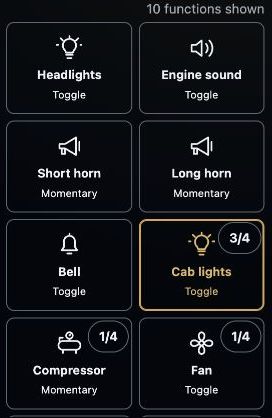
The count shows when a function is available on only part of the train, such as cab lights on three of four locomotives.