Build a train you’ll love to run.
Choose the vehicles, put them in order and give the train its own character. From a little branch-line passenger to a long freight, keep it ready for another day.
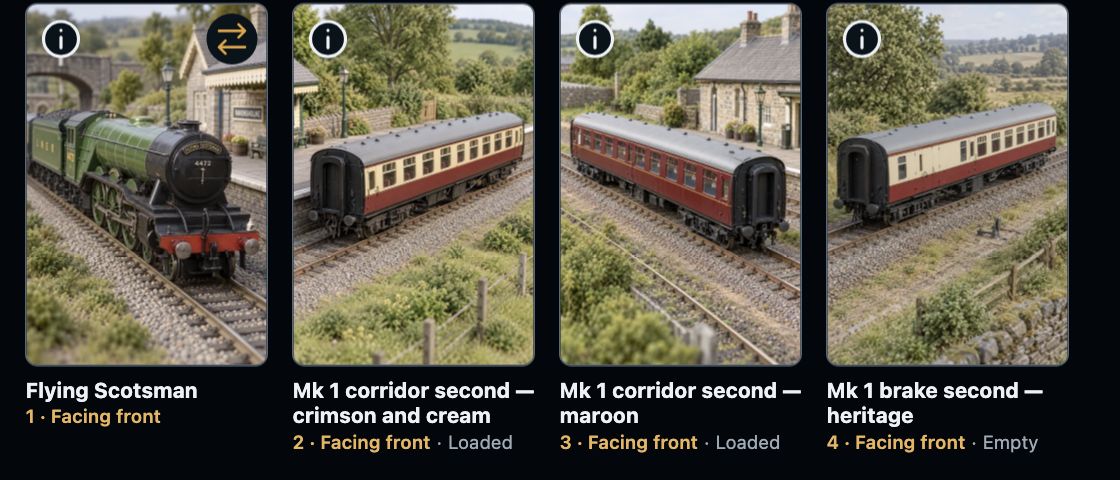
See the vehicles in order, with their facing and load choices beside them.
Step 1
Give it a name you recognise.
Call it the branch-line passenger, the evening goods or whatever makes it yours. A name, description and notes help you recognise the train when you come back.
Start with a locomotive from your collection. You can keep it simple, then add coaches or wagons when you want a longer train.
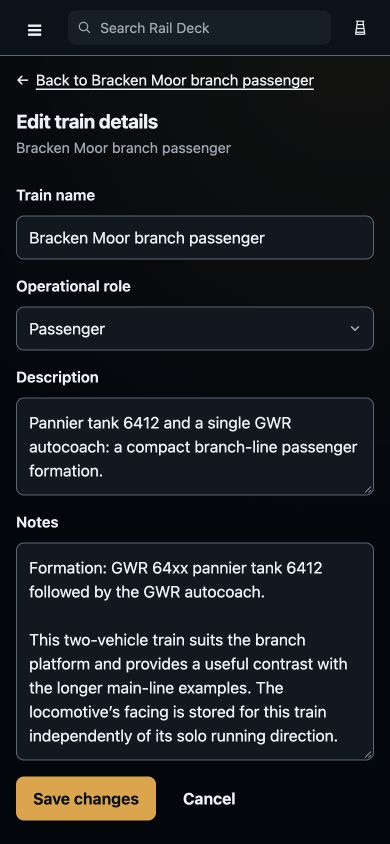
A familiar name, a description and your own notes make the train easy to recognise.
Step 2
Put every vehicle in its place.
Choose locomotives and rolling stock from your collection, then arrange them from front to rear. Move a vehicle by dragging it, or tap it and choose a position.
Choose which way it faces
Turn a vehicle in the formation without changing its place in the train.
Choose the load
Mark rolling stock as loaded or empty, and keep that choice with the formation.
Save it when you’re happy
Your choices stay in the editor until you save the train. Cancel if you decide to leave it as it was.
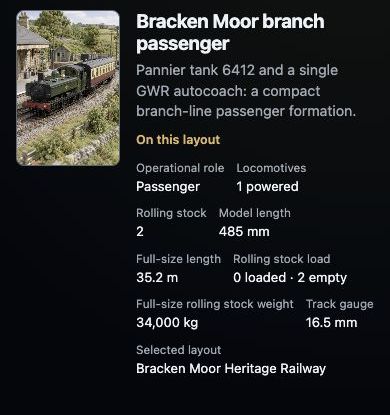
A named train keeps its vehicles and layout details together.
Step 3
Give it a character of its own.
A light passenger train and a heavy freight don’t have to feel the same. Choose saved driving and brake profiles to suit the way you want to run each train.
Keep those settings with the train and revisit them whenever you fancy a change. You don’t need to choose every advanced setting to get started.
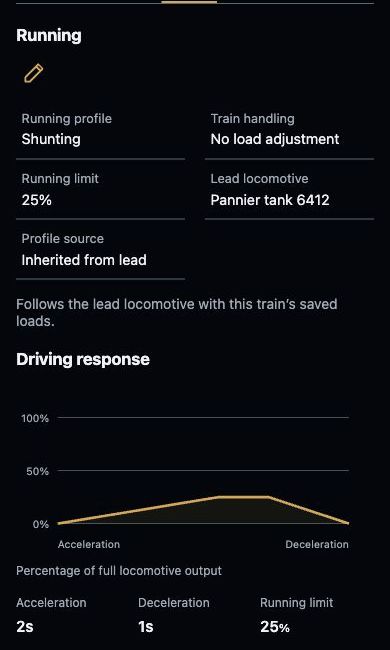
The saved running profile, speed limit and response curve stay with the train.
Step 4
More locomotives. One train.
Add more than one locomotive and choose which way each faces. Open the train’s controls to drive them together, with the functions you need close by.
Function counts help you see when a control applies to only part of the train. For example, cab lights may be available on three of four locomotives.
Running locomotives together depends on supported equipment. Check Compatibility before choosing hardware or planning physical speed matching.
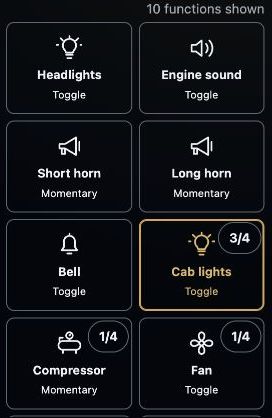
The count shows when a function is available on only part of the train, such as cab lights on three of four locomotives.
Step 5
Save it. Come back. Enjoy it again.
Open a saved train when you’re ready for another session. Its formation and chosen settings stay together, so you can spend more time enjoying your railway.
On your phone, tablet or computer, the train’s throttle, direction, brakes and locomotive functions stay together. Routes and accessories can sit alongside them as your railway grows.
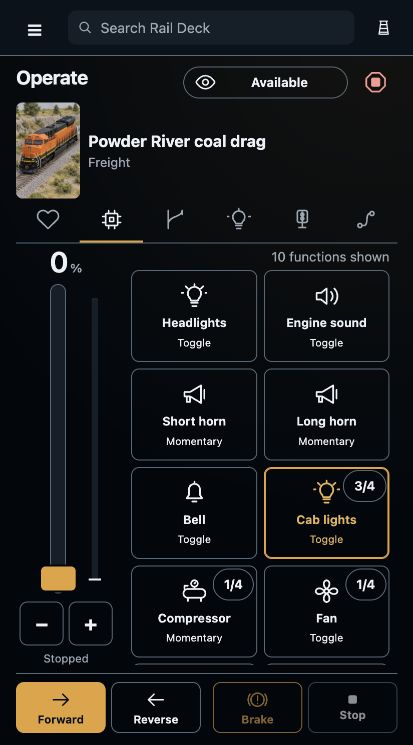
The train’s functions, direction, brake and throttle stay together on your phone.