More time enjoying the drive.
Open a locomotive or saved train and keep its driving controls together. Throttle, direction, brakes and functions are close at hand, with routes and accessories beside them.
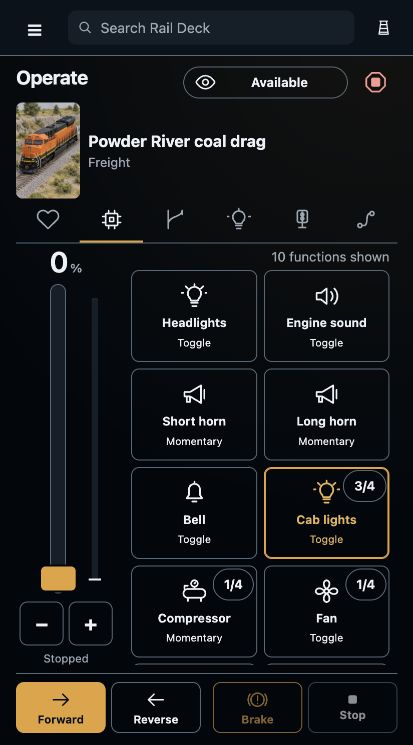
The train’s functions, direction, brake and throttle stay together on your phone.
Step 1
Choose what you fancy running.
Open a locomotive or a saved train, then open its controls. A saved train brings its formation and chosen driving settings with it.
The name and picture stay visible, so it is easy to see which train you have chosen.
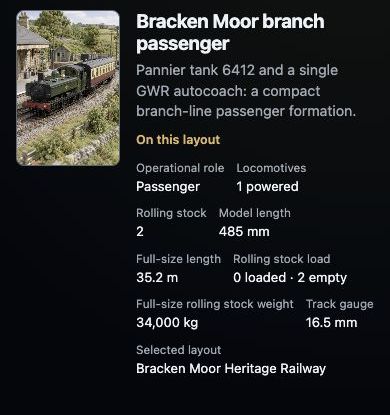
A named train keeps its vehicles and layout details together.
Step 2
Find your rhythm.
Use the throttle to choose your speed, with smaller changes available through the plus and minus controls. Forward and Reverse keep direction close by.
Where a brake profile is enabled, hold Brake to slow the train. Stop has its own clear control. Choose a driving profile when you want a different response.
The train’s functions, direction, brake and throttle stay together on your phone.
Step 3
Lights, sounds and the little details.
Keep mapped locomotive functions beside the driving controls. Familiar names help you find lights, the horn and the other functions your locomotive has.
With several locomotives in a train, function counts show when a control is available on only some of them.
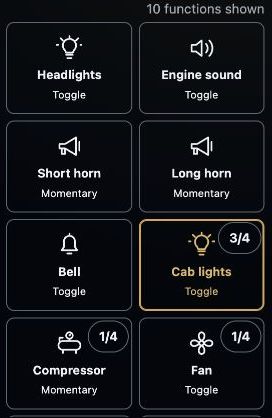
The count shows when a function is available on only part of the train, such as cab lights on three of four locomotives.
Step 4
Keep the rest of the railway in reach.
Switch between functions, favourites, points, signals, lights and routes while keeping the selected train and driving controls in place.
The screens shown illustrate the Rail Deck interface. Check current Compatibility before planning physical operation with your equipment.
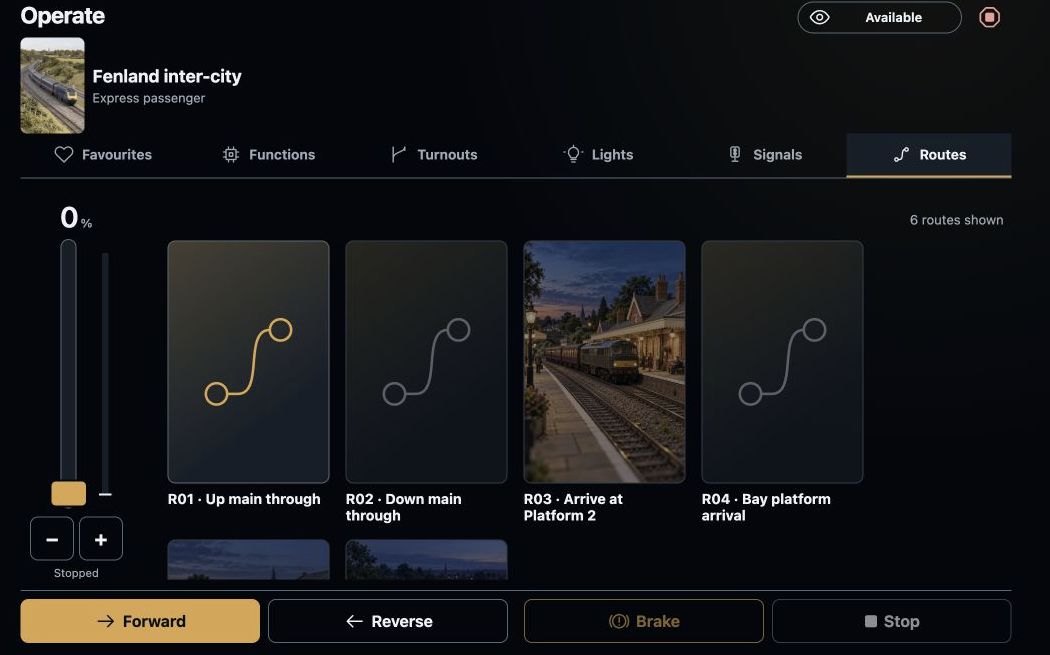
Named routes sit beside the train controls on the operating screen.