Make familiar moves feel simple.
Keep a regular railway move under a name you recognise. Routes and linked accessories bring saved choices together, with clear controls beside the train you are driving.
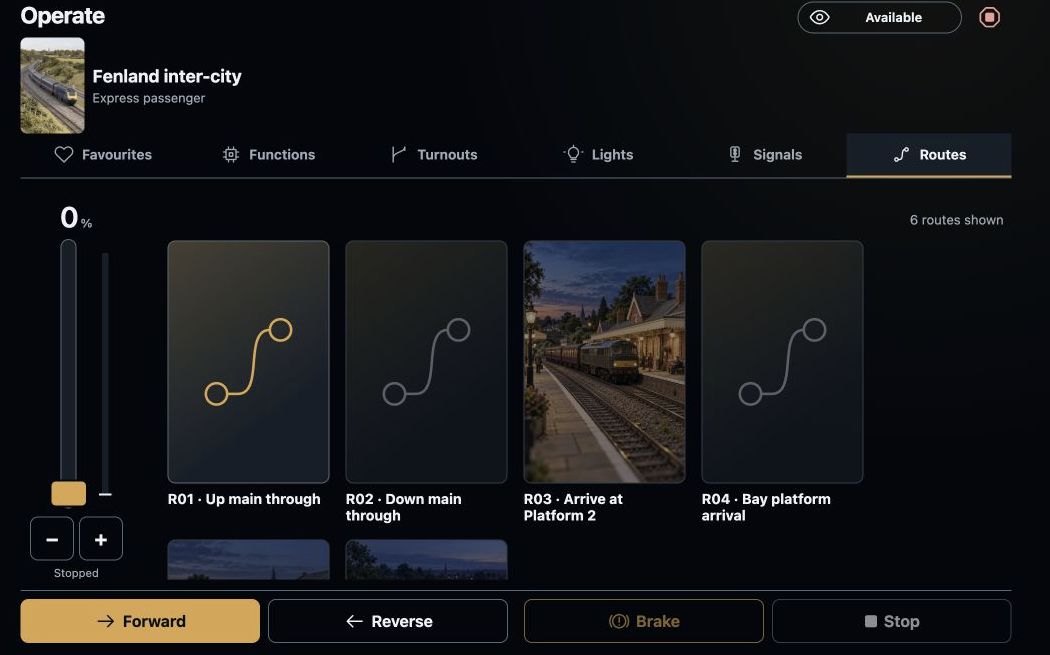
Named routes sit beside the train controls on the operating screen.
Step 1
Give the move a familiar name.
Think of the arrival, departure or yard move you use regularly. Give the route a name that tells you where it leads, and choose a picture that helps you find it.
Add the accessories that belong in the move and choose their saved destinations. Saving the route keeps those choices; it does not operate the railway.
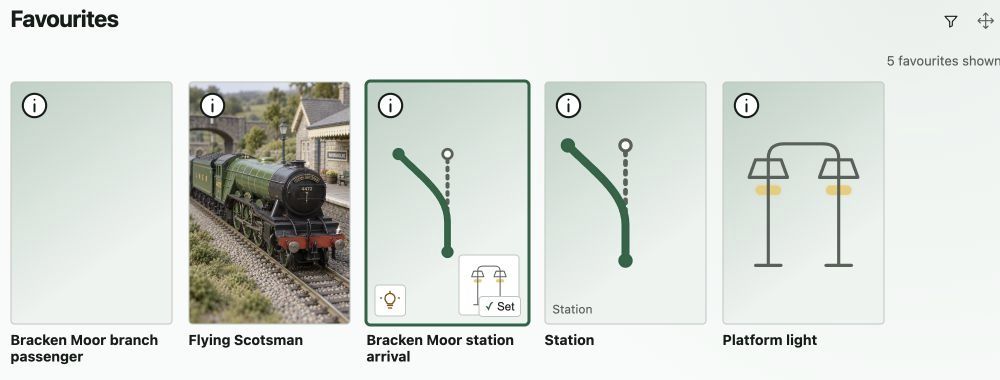
Favourite trains, routes and accessories can sit together in an order that suits you.
Step 2
Keep related choices together.
Linked accessories are useful when a group has more than one complete arrangement. Choose the saved arrangement you want, such as Open or Closed for a station access group.
You can give arrangements their own names and pictures. Where cycling is enabled, each tap chooses the next arrangement in the saved order.
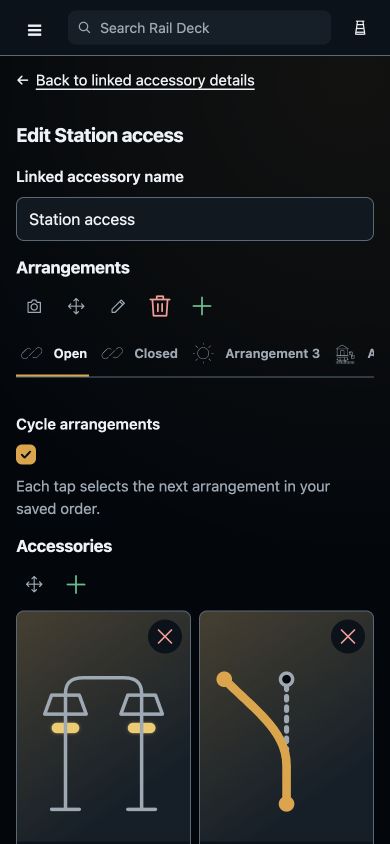
Name complete arrangements and keep their accessory choices together.
Step 3
Choose the route when you need it.
Find saved routes on the operating screen beside the driving controls. Set and Restore are deliberate actions, with the route’s status shown in the same place.
Follow the displayed outcome rather than assuming every accessory has moved. A railway connection and supported equipment are still required for physical operation.
Named routes sit beside the train controls on the operating screen.
Step 4
Keep your regular moves close.
Add the routes you use most to your personal favourites for this layout. Keep them beside favourite trains and accessories, in the order that suits you.
Routes organise your chosen accessory settings. They do not add train detection, automatic train stopping or automatic interlocking.
Favourite trains, routes and accessories can sit together in an order that suits you.